Visual partition planning
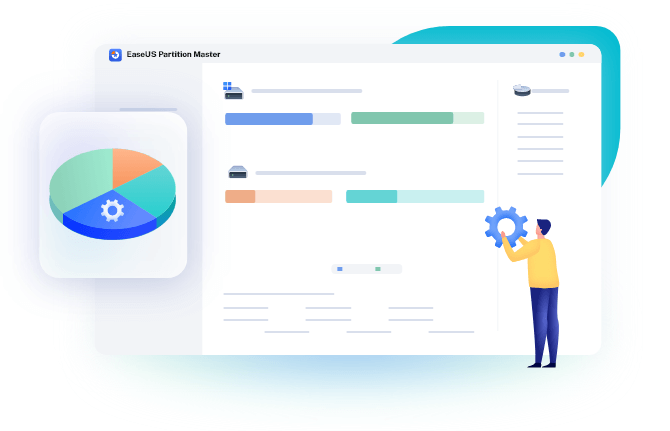
The interface presents disks and partitions graphically so users can review proposed resize, move, create, delete and format operations before applying them.
A decision guide to EaseUS Partition Master for resizing, moving, cloning and managing partitions, with backup-first safeguards and edition checks before applying disk changes.
Read4Max may earn a commission when you use this partner link.
Partition work changes the structure that tells an operating system where data is stored. A failed operation, power loss, unstable disk or incorrect target selection can make a system unbootable, so the value of a partition tool depends as much on preparation and recovery planning as on its feature list.
The interface presents disks and partitions graphically so users can review proposed resize, move, create, delete and format operations before applying them.
Many changes remain queued until the user confirms them, providing a final opportunity to verify the disk number, source, destination and resulting layout.
Official editions include disk or system migration functions intended for SSD upgrades and storage replacement, subject to edition and hardware support.
Depending on the current edition, the product can include conversion, recovery, bootable media and disk-management tools beyond the basic Windows utilities.
Back up important files, confirm the file system is healthy and preview the resulting free space before applying a resize.
Use a supported migration workflow after confirming the target capacity, partition style, firmware mode and a separate rollback or recovery path.
Create or reorganize partitions for a new operating system, application or data layout only after identifying every disk and protecting existing data.
No. Modern tools reduce routine risk, but the operation still changes disk metadata and may move data. A current backup and stable hardware remain essential.
Supported editions provide migration or cloning workflows. Confirm the current edition, target size, partition style and boot mode before starting.
Windows cannot safely modify every system or locked partition while it is in normal use, so the tool may schedule work in a pre-boot environment.
Verify the physical disk, selected partition, final layout, free space, backups, power stability and any encryption or boot-recovery requirements.
A decision guide to EaseUS Partition Master for resizing, moving, cloning and managing partitions, with backup-first safeguards and edition checks before applying disk changes.
Each recommendation shows why it belongs here.

A practical guide to EaseUS RecExperts for screen, webcam and audio recording, with performance, storage, consent, protected-content and transcription…

A practical guide to EaseUS Data Recovery Wizard for deleted, formatted or inaccessible files, with a cautious recovery workflow, edition checks and…

A practical guide to EaseUS PDF Editor for changing text and images, converting files, using OCR and preparing documents, with platform, trial and…